
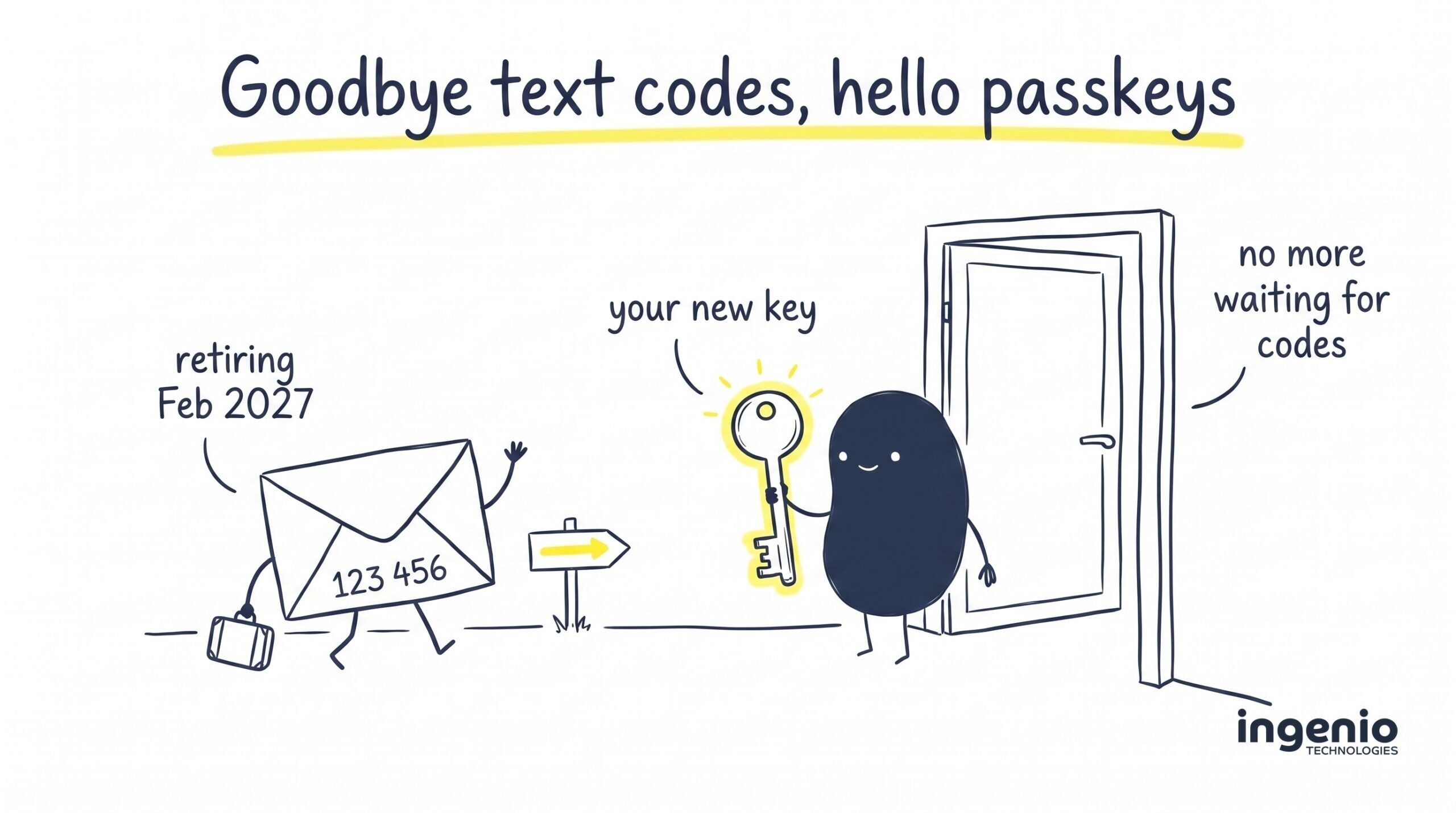
If you sign in to your work email and a six-digit code arrives by text message, this one is for you. Microsoft has announced that it is retiring SMS and voice call codes for signing in to Microsoft 365. From September 2026, your team will start seeing prompts to set up something newer and, honestly, much better: a passkey.
Announcements like this tend to arrive wrapped in technical language, and Microsoft’s own guidance is written for IT departments rather than the businesses they serve. So here is our plain English version: what is changing and when, why text message codes are on the way out, what a passkey actually is, where Windows Hello fits in, and what your business should do before the deadlines. It is the same guidance we are giving our own clients across Brighton and Sussex.
What is changing, and when
Behind every Microsoft 365 login sits a system called Microsoft Entra ID. When you type your password and then prove it is really you with a second step, that second step is called multi-factor authentication, or MFA. For years, many businesses have done it with a code sent by text or a voice call reading digits down the phone.
Microsoft has now said, plainly, that those two methods are no longer secure enough, and its announcement sets out how they will be switched off in stages:
| Date | What happens |
|---|---|
| 1 September 2026 | Passkeys become the default way to sign in. Anyone who currently receives codes by SMS or voice call will be nudged to register a passkey when they next sign in. The prompt can be snoozed while you get organised. |
| 1 February 2027 | Microsoft stops providing SMS and voice codes altogether. From this date, anyone whose only second step is a text or a call must register a passkey before they can carry on signing in. That prompt is blocking, and there is no opt-out. |
Two details worth knowing. First, this covers password reset codes as well as everyday logins. Second, if your team already approves logins with a tap in the Microsoft Authenticator app, nothing is being switched off for you; the retirement applies to text messages and phone calls, though Microsoft will still nudge everyone in the same direction.
For your business
February 2027 sounds distant, but the nudges start in September 2026. If the first your team hears of this is a full-screen prompt on a busy Monday, you will spend that week fielding confused calls. A little planning now means the change lands quietly.
What is wrong with codes by text message?
Text message codes feel safe, and they are certainly better than a password alone. The trouble is that criminals worked out the weaknesses years ago, and the weaknesses are baked in:
- Your number can be stolen. In a scam called SIM swapping, an attacker persuades a mobile network to move your phone number onto their SIM card. Every code meant for you is then delivered straight to them.
- Codes can be relayed. A convincing fake sign-in page asks for your password, then the code. You type both, and malicious software passes them to the real site in seconds. This is the classic phishing attack, and a six-digit code does nothing to stop it, because you can be tricked into handing the code over.
- Texts are not sealed. An SMS travels through systems designed in the 1980s; there is no padlock on a text message, and a voice call is no better.
None of this is theoretical. Stolen and intercepted codes sit behind a large share of the account takeovers we see, and the cost of a cyber attack for a small business makes them well worth preventing. The National Cyber Security Centre has been encouraging organisations towards stronger ways to sign in for some time, and Microsoft’s announcement simply makes the direction of travel official.

What is a passkey, and how is it better than a password?
A passkey is a digital key that lives on a device you own: your phone, your laptop, or a small hardware key. Instead of typing a password and waiting for a code, you approve it with whatever already unlocks that device, usually your fingerprint, your face, or a device PIN.
If you have ever unlocked a banking app with Face ID or paid for shopping with your thumbprint, you have already done everything a passkey will ever ask of you. Passkeys are designed to make signing in easier and more secure at the same time, a rare combination.
Is it not just another password to manage? No, and here is how passkeys work, minus the mathematics. When a passkey is created, your device generates a matched key pair. It sends the public key to the server it will be signing in to, while storing the private key on the device itself. The private key never leaves your device. When you sign in, the service sets a small mathematical challenge that only the private key can answer, which lets it verify you using the public key, with no secret crossing the internet. This is public key cryptography, the same idea that protects online banking, wrapped in an open technology standard called WebAuthn.
The practical upshot:
- Nothing needs remembering. They never need to be remembered, typed, or written on a note under the keyboard.
- There is nothing to steal in transit. No code travels by text, so there is nothing to intercept or relay.
- A fake page gets nothing. The key only answers the genuine site it was created for, which is why passkeys are resistant to phishing in a way codes never can be.
That is the whole trick: a more secure alternative to passwords and codes that is also, day to day, less work.
Two kinds of passkey, in plain English
Synced passkeys
These passkeys are stored in a credential manager such as iCloud Keychain or Google Password Manager; the passkeys sync across all your devices via a cloud service you already use. Lose your phone and the key is waiting on the new device once you sign back into your Apple or Google account.
Device-bound passkeys
Created and kept on the local device only, such as a work laptop, the Microsoft Authenticator app, or a hardware security key you keep on a lanyard. Nothing is copied anywhere, which some organisations prefer.
What is Windows Hello?
Windows Hello is the feature built into Microsoft Windows that lets you unlock your laptop with facial recognition, a fingerprint or a PIN instead of a password. If your laptop has ever recognised you and let you straight in, that was Windows Hello doing its job. Windows Hello for Business is the company-managed version, and it belongs to the same family of strong methods, so staff who use it are already where Microsoft wants everyone to be.
For most businesses, the everyday options for storing a work key look like this:
| Where the key lives | What it looks like day to day |
|---|---|
| Your Windows laptop | Windows Hello signs you in with a glance or a touch. Nothing extra to carry. |
| Your phone | The Microsoft Authenticator app holds the key; you approve with the face or thumb unlock you already use. |
| A hardware key | Hardware security keys, sometimes called security tokens, plug in or tap like a contactless card. Ideal for shared computers or staff without smartphones. |
| A credential manager | iCloud Keychain or a business password manager syncs the key between your devices. |
Are passkeys easy to set up?
Genuinely, yes. This is the bit people worry about most and the bit that turns out to be a non-event, not least since passkeys are easier to use than what they replace. From 1 September 2026, look out for prompts at sign-in inviting each person to create a passkey. To set up a passkey takes a couple of minutes: choose where to keep it, confirm with a fingerprint or PIN, done. From then on, that is how you authenticate. There is no software to install, and the first time you use a passkey the surprise is how little there is to it.
Can I still use my password? Yes, for now. The passkey replaces the code step first, so day one simply feels like fewer hoops. Over time, Microsoft plans for passkeys to replace passwords entirely as part of a wider move to passwordless authentication, but nobody’s password stops working in September. In the meantime, the old advice stands elsewhere: use strong passwords, and use a password manager to hold them.
What about my other devices? You can use passkeys on as many devices as you like. A synced key follows you automatically, you can create a passkey on each device you use, or you can keep one in the Authenticator app and use your phone to approve everything else.
Does this help me outside work? Yes. Many everyday services now let you add a passkey for Amazon, Google or Apple accounts, usually under account security or privacy settings, and the switch is just as painless there.
And the honest downsides? There are a few, and they are manageable. A lost device needs a recovery route, so keep a second method registered. Shared logins need a plan, because a key tied to one person’s face does not suit a mailbox three people share. And a handful of older devices cannot support passkeys, which is worth knowing before September rather than after. This is exactly the sort of thing we untangle for clients before anyone hits a prompt.
How to start using passkeys before the deadlines
The businesses that find this painless will be the ones that treat adopting passkeys as a small project this year, not an emergency in eighteen months. The plan is short:
- Find out who still gets codes. Microsoft provides a usage report that lists exactly which users still sign in by SMS or voice call. That list is your to-do list.
- Switch on passkeys. A setting in the Microsoft admin centre, best paired with sensible policies about where keys may be stored.
- Run a small pilot. A handful of willing people try it for a fortnight, and their lessons shape the wider rollout.
- Tell everyone what is coming. Microsoft publishes ready-made staff communications, and a two-line heads-up beats a surprise prompt every time.
- Flag the special cases. A few regulated organisations genuinely need codes by phone. From late 2026, Microsoft will let those businesses buy SMS delivery from a telecoms provider through its Security Store. It is a paid route for the few, not the default for the many.
How we help
We have guided Sussex businesses through Microsoft deadlines before, most recently the analogue phone switch-off, and the recipe is the same: start early, communicate clearly, and leave nobody stranded. For our managed clients, we run the usage reports, stage the rollout, brief your team in language they recognise, and quietly sort the awkward cases, from shared mailboxes to the one laptop in the warehouse that predates biometric hardware.
A stronger login step is also the single cheapest improvement most small businesses can make to their security, which is why it sits near the top of our cyber security guidance for small businesses. If your IT is looked after by someone, ask them what the plan is. If the answer is a blank look, we should talk.
Frequently asked questions
What happens if I lose my phone?
You sign in from another device you have registered, such as your laptop with Windows Hello, or with a synced key restored to the replacement phone, and your IT team can remove the lost device from your account. Good account recovery means keeping a second method registered as a backup, which is why we always set up more than one per person.
Can a passkey be phished or guessed?
Not in any practical sense. There is nothing to type into a fake page, nothing sent by text to intercept, and nothing short enough to guess. An attacker would need your actual device, and your face or PIN along with it.
Does a passkey count as MFA on its own?
Yes. It combines something you have, the device holding the key, with something you are or know, the biometric or PIN that unlocks it. That is two factors in one smooth step, which is why Microsoft treats it as a complete MFA method.
We have shared logins. What do we do?
Shared accounts deserve a rethink anyway, and this is the nudge. Options include shared mailboxes opened from individual accounts, delegated access, or a hardware key kept where the team works. We help clients pick the right pattern rather than the quick one.
Will moving to passkeys cost anything?
No. They are included with Microsoft 365, and Windows Hello is built into Windows. The only paid route is for organisations that must keep SMS codes for compliance reasons, who will buy message delivery through a telecoms provider from late 2026.
Does this affect password resets too?
Yes. Self-service password reset in Microsoft 365 relies on the same verification methods, so codes by text and voice call retire there as well. It is one more reason to get everyone onto stronger methods in good time.
Final thought
Every so often a security change comes along that makes life easier rather than harder, and this is one of them. Fewer codes, fewer resets, nothing to remember, and a front door that fake login pages simply cannot open.
The dates are set: nudges from 1 September 2026, retirement on 1 February 2027. Businesses that plan this year will barely notice the switch. If you would like help finding out who in your team still relies on text codes, or you just want a second opinion on your setup, we are happy to talk it through.


