Someone has handed in their notice, and their last day is Friday. The laptop and the email account are on everyone’s list. The internal distribution list they’re still on, the supplier portal they log in to every month and the old laptop sitting in a drawer usually aren’t.
None of that happens because anyone is careless. Offboarding sits between the line manager, HR and IT, so each assumes another has it covered. That’s why we’ve been working on an IT offboarding checklist for small and medium businesses. It covers what to do before, on and after a departing employee’s last day, who should own each step, and the gaps our engineers are most often asked to clean up weeks later. There’s a free, printable employee offboarding checklist template to download at the end.
Why offboarding is a cyber security issue
An account that still exists is still a target. When an employee leaves, their mailbox keeps receiving email, phishing included (we covered the different types in last week’s post on phishing, spear phishing and whaling). A departing employee may also have set up forwarding rules or app connections nobody else knows about. If sign-in hasn’t been blocked, an attacker who guesses or steals that password gets account access nobody is watching, along with all the company data in that inbox.
It’s worth thinking of it as two possible lines of attack. One is the outside criminal looking for accounts former employees left behind. The other sits outside “cyber attacker territory” altogether: a former employee, perhaps one who left unhappily, who can still get into email, files or the company’s social media.
Offboarding is the last stage of the employee lifecycle. The NCSC’s 10 Steps to Cyber Security asks organisations to have a “joiners, movers and leavers” policy so access can be revoked when it’s no longer needed. Cyber Essentials says the same thing in its own requirements: remove or disable user accounts when they’re no longer required, for example when someone leaves.
Who owns the offboarding process?
Agree this before anyone leaves. Set out a company-wide process that covers every task and give each one an owner, so nothing falls through the gaps. The business should decide when the leaver’s access should stop, who takes over their email and files, and which logins outside Microsoft 365 they hold. IT should carry out the technical changes and confirm they’re done. Problems start in the space between those two lists.
Our clients send a leaver request through the leaver form in Ingenio Lightbulb, which creates a support ticket and collects what an engineer needs in one go. Aim for at least two working days’ notice. Whatever system you use, try to send one clear request with the date, the exact time access ends and the named person accountable for the checklist, rather than a string of emails.
Remember there are two kinds of offboarding: people and devices. Replacing someone’s laptop is an offboarding job too, even when nobody is leaving.
Employee offboarding checklist: the IT steps, in order
These are the stages of employee offboarding from the IT side, in the order you’d do them. HR will run its own steps alongside, such as the letter of resignation, the exit interview and their final pay.
Before their last day
- Agree the date and exact time access stops, for example 5.30pm on their final day, and send IT the request.
- Decide who takes over their email and files, including anything in OneDrive, SharePoint or Google Drive.
- List every system the employee had access to outside Microsoft 365: banking, accounting and payroll, CRM, supplier portals, social media, the website and domain. Include any account that sends codes or renewal notices to their email or mobile.
- List their devices: laptop, mobile, tablet and any USB drives, and decide whether each is reused, wiped or recycled. For remote employees, arrange how the laptop will come back before their final week.
On their last working day
- Block sign-in to Microsoft 365 or Google Workspace at the agreed time. Removing a licence isn’t enough on its own.
- Revoke access to the server, shared drives, virtual private network (VPN) and other remote access, and switch off or forward their phone extension.
- Collect devices, chargers, keys, fob and company card, and ask them to remove work email and apps from their own phone.
- Hand over or close each login on your list, and transfer password manager items to a named colleague.
- Change the Wi-Fi password, alarm code and any shared passwords they knew.
In the first week
- Convert their mailbox to a shared mailbox and give a named colleague access. Transfer ownership of their OneDrive files in the same way. Add an auto-reply if you want one.
- Check for forwarding and inbox rules, especially any sending mail to a personal address.
- Remove them from distribution lists, shared mailboxes, Microsoft Teams and groups.
- Remove the licence once the mailbox is converted, then reuse or cancel it.
- Wipe and reassign or retire each device, and tell IT so it comes off your records.
Within a month
- Check your next IT bill shows the lower licence count.
- Put a review date in the diary for the shared mailbox and files, and record who signed the offboarding off.
Free template
Download our staff offboarding checklist (PDF), a two-page employee offboarding template. The manager fills in page one when someone hands in their notice, then sends it to IT. Page two splits the offboarding tasks between the manager, HR and IT, so everyone can see where their part starts and ends.
Hiring a replacement? Use our new starter IT setup form to make sure onboarding goes smoothly.
Disabled, unlicensed or deleted: what’s the difference?
These three words get used as if they mean the same thing. They don’t.
| What it means | Our view | |
|---|---|---|
| Sign-in blocked (disabled) | The account and its data still exist, but nobody can sign in. | Safe. Do this first, at the agreed time. |
| Unlicensed | The account has no Microsoft 365 apps or mailbox licence. | Saves money, but doesn’t stop sign-in. Block sign-in as well. |
| Deleted | The account is removed and can be restored for 30 days, then it’s gone. | Usually unnecessary. A shared mailbox keeps the email safe for free. |
We’ve seen accounts with the licence removed but sign-in still switched on. It happens because the two settings live in different places, and taking the licence away feels like closing the account. It doesn’t. That’s why blocking sign-in matters so much: once it’s blocked, the leaver’s credentials and the authentication app on their personal phone stop working too.
Order matters as well. Microsoft’s guide to removing a former employee warns that if you remove a licence from a normal mailbox, the email is deleted permanently after 30 days. Convert it to a shared mailbox first, then remove the licence.
Should you forward a leaver’s email?
Our standard approach is to block sign-in, convert the mailbox to a shared mailbox and give the right person access. A shared mailbox under 50GB doesn’t need a licence, so you won’t be paying for it. Customers and suppliers can keep writing to the old address, and an auto-reply can point them to the new contact.
We’d avoid email forwarding where you can. Forwarding rules are a favourite attacker tactic: once they’re inside a mailbox, criminals quietly set up a rule that copies everything to an address they control. For that reason, our support engineers are notified whenever a new email forward is set up on a client mailbox, so we can check it’s legitimate. A forward on a leaver’s account, especially one pointing to a personal email address, is exactly the kind of thing we’re checking for.
Is keeping the address running a risk? Not if sign-in is blocked and it’s a shared mailbox, because there’s no account for anyone to sign in to.
What our engineers are asked to fix later
- Distribution lists. The most common one. Weeks or months later, someone notices a former employee’s address is still on an internal team list and asks for it to be removed.
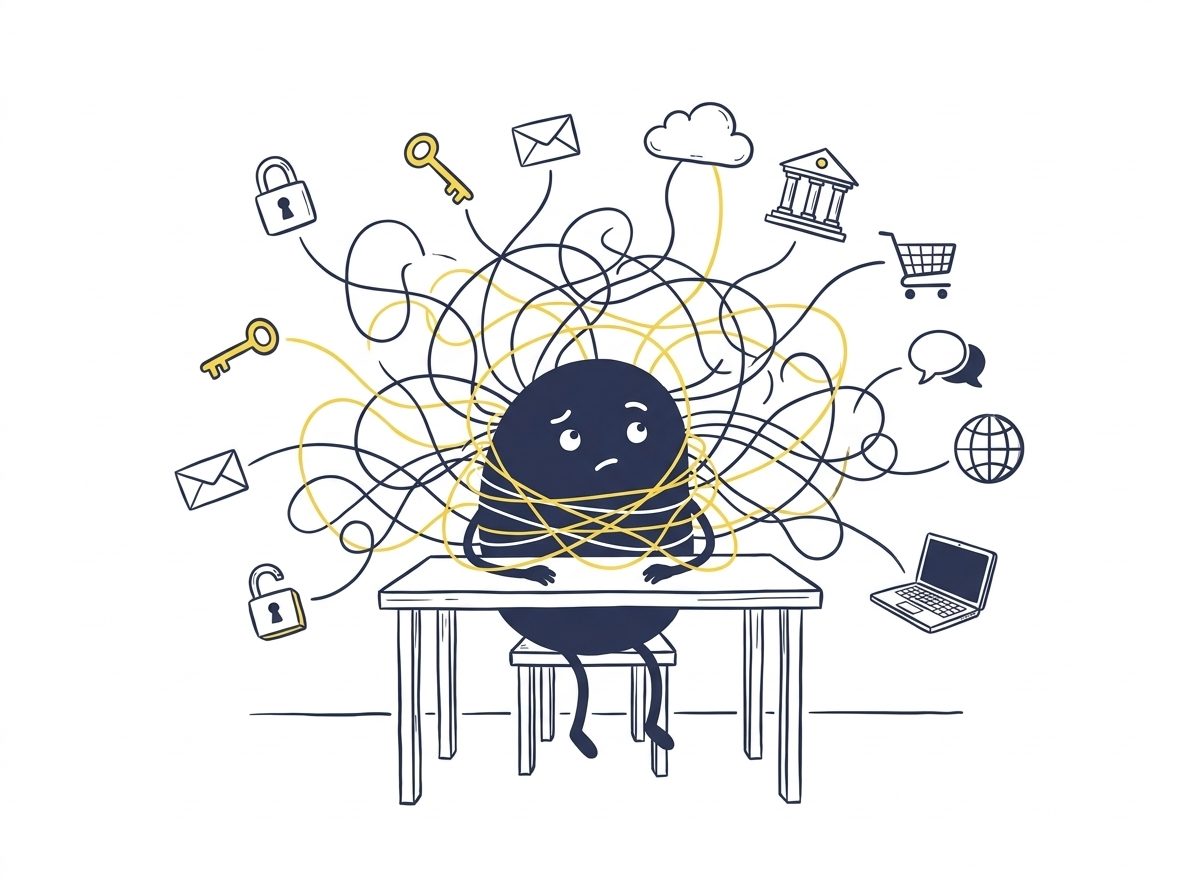
- Permission creep. The longer someone has been with you, the more logins and access they gather: a SaaS (cloud software) app here, a supplier portal there. By the time a long-serving team member leaves, it’s a web of access that’s hard to unpick, and IT can’t see most of it. A shared, centralised password manager makes this far cleaner, because logins can be handed over in one go. We use Keeper, which has a company transfer option; not every password manager does.
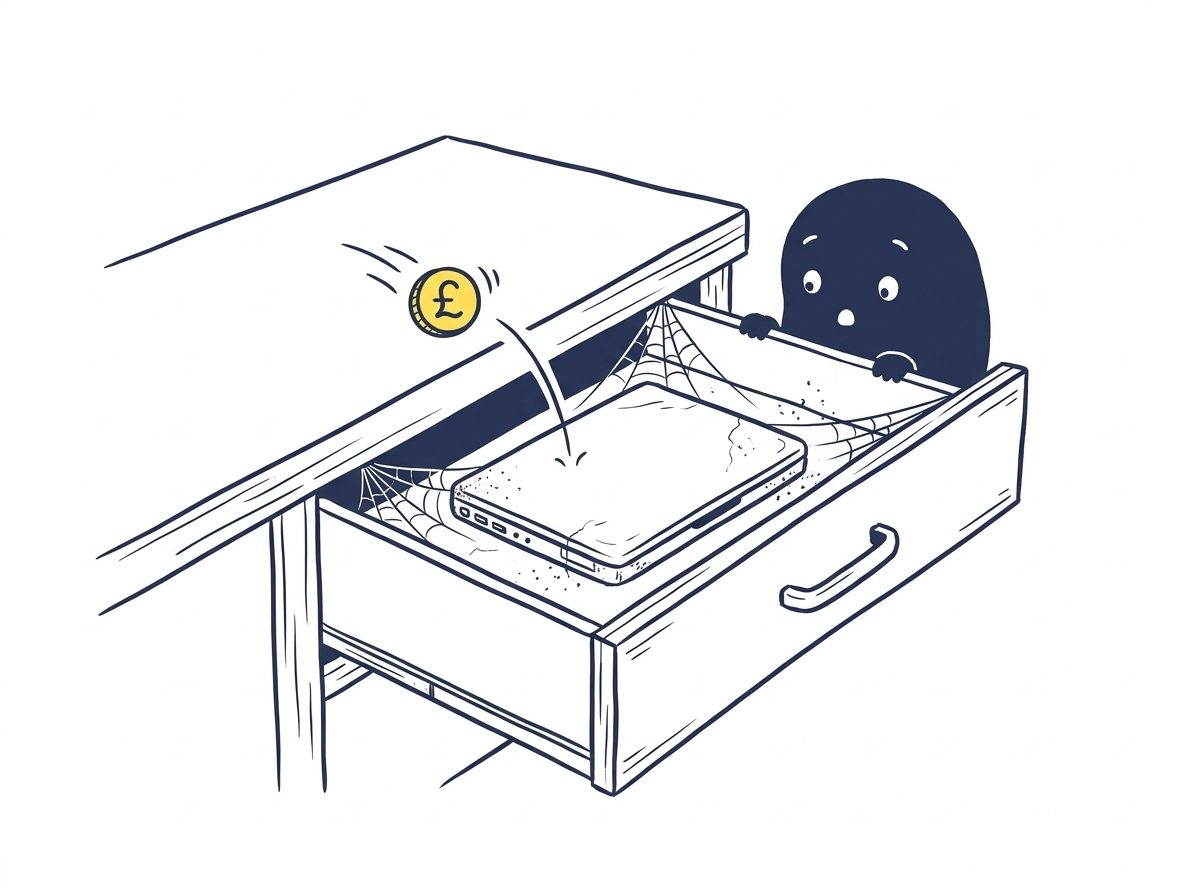
- Forgotten devices. A replaced laptop goes in a drawer, then gets handed to a new hire months later. Some businesses don’t realise they’re still paying monthly for that device’s security software and licences. If you’ve got more devices than staff, it’s worth checking which ones are still needed. Tell IT whenever a device changes hands.
- Personal AI and app accounts. Company documents stored in a personal account leave with the person. Our post on shadow AI explains how that happens.
Dismissals, contractors and temporary staff
If someone is dismissed rather than resigning, the process is the same, but timing matters more. Phone your IT support first to say a leaver request is coming, then send it with a specific time, often the moment the conversation starts.
Contractors, volunteers and work-experience staff need the same offboarding as employees. Talk to IT about long absences such as maternity leave too, so the account isn’t left dormant.
One tip for temporary staff: give each person their own account rather than a shared intern@ or temp@ login. If you have three interns over six months sharing one account, you can’t tell who did what. Shared accounts like that are hard to trace; an individual employee account is traceable and easy to close.
How we help
We look after IT for businesses across Brighton, Sussex and the South East. Leaver requests come through Ingenio Lightbulb, and an engineer works through the checklist: blocking sign-in, converting the mailbox, setting up access and auto-replies, removing licences and dealing with devices. Our asset management gives you and us visibility of every managed device in one place, so it’s easy to spot ones that aren’t needed. If a managed device shows no activity for 60 days, we’re notified and follow it up with you.
Our Microsoft 365 identity protection watches for suspicious sign-ins and hidden inbox rules, the same warning signs that matter when an old account is misused.
Frequently asked questions
How soon should a leaver’s access be removed?
At an agreed time on their last working day, for example the end of their final shift. If someone is dismissed, remove access at the moment they’re told, and phone IT in advance so they’re ready.
Should we delete a leaver’s account or just disable it?
Block sign-in, then convert their mailbox to a shared mailbox and give a colleague access. Deleting the account is usually unnecessary, and a shared mailbox under 50GB doesn’t need a Microsoft 365 licence.
Is it safe to forward a former employee’s email?
It can work for a short time, but a shared mailbox with an auto-reply is safer and easier to manage. Never forward a leaver’s mail to a personal address, and check their mailbox for forwarding rules they set up while they worked for you.
What are the steps in the offboarding process?
Plan before their last day, block access on their final day, deal with email, devices and licences in the first week, and review within a month. Our checklist above takes you through each stage.
Is offboarding part of Cyber Essentials?
Yes. Cyber Essentials requires user accounts to be removed or disabled when they’re no longer needed, for example when someone leaves the organisation.
Final thought
Our engineers’ main advice on leavers: don’t leave it until the last minute. Have a written procedure, so everyone knows exactly where their part starts and ends, and what IT can handle compared with what sits with the business.
👉 Talk to us about your leaver process. We’re happy to talk it through.