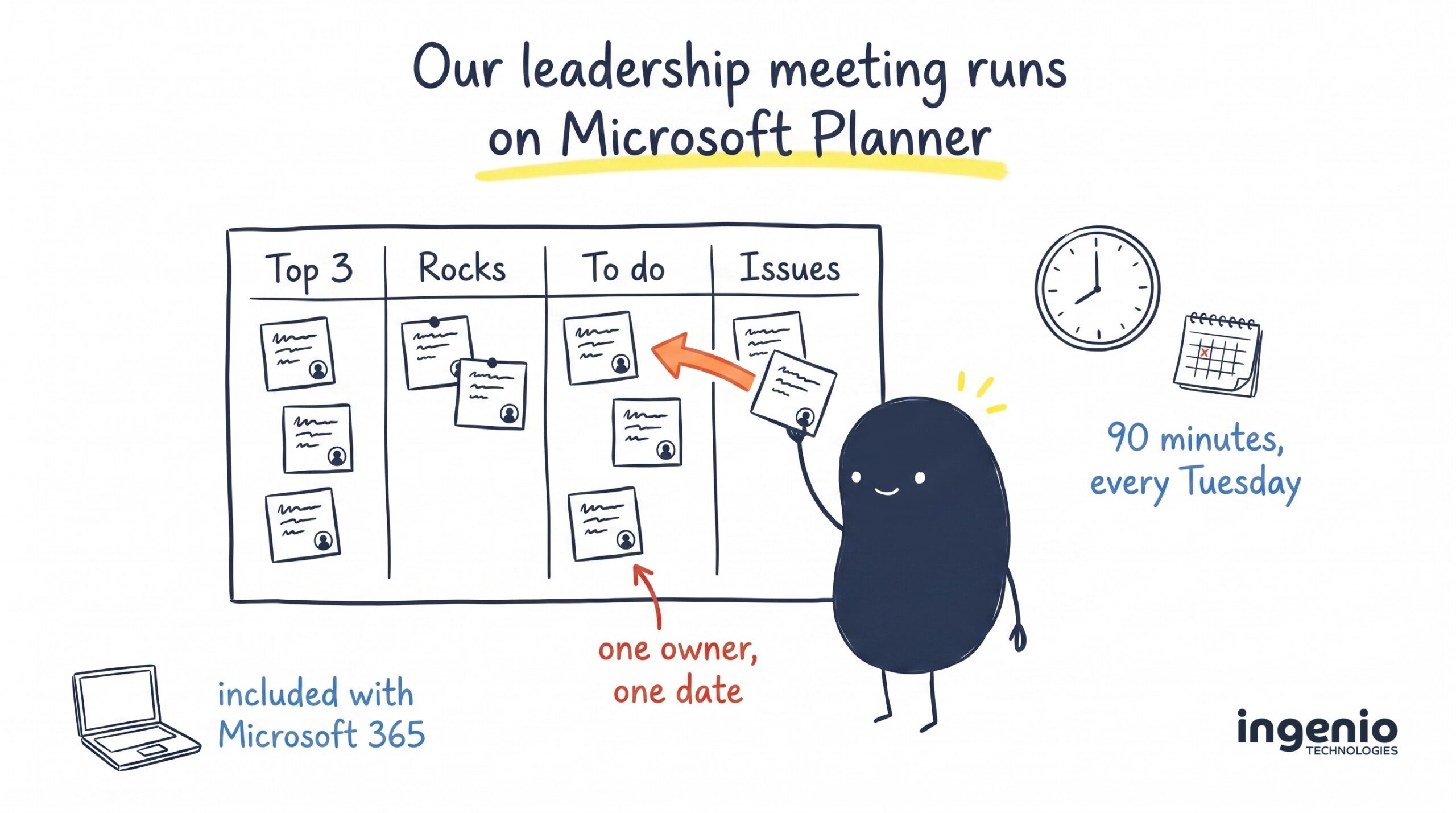
Every Tuesday at 10:15, our leadership team sits down for 90 minutes with one thing on the screen: a Microsoft Planner board. It is a simple board: six columns, a few dozen cards, one name and one date on each. It runs our most important meeting of the week, and it came included with the Microsoft 365 subscription we were already paying for.
Many of the businesses we meet pay for the same subscription, have never opened Planner, and pay separately for a standalone board tool to do the same job. Planner can do that job at no extra cost, for projects and for meetings.
How we run our leadership meetings
A leadership meeting is the weekly session where the people who run the business look at the same numbers, check progress on the quarter’s priorities, and solve the problems that came up. Most small businesses have one. The usual problems are that the time moves, the agenda changes, and the same issue comes back three weeks running because nobody wrote down who owned it.
We run ours using EOS, the Entrepreneurial Operating System. It is a published set of simple tools for running a company: a two-page plan, a weekly scorecard of numbers, 90-day priorities, and a fixed meeting rhythm. Its weekly meeting is called a Level 10 meeting, because the last thing you do is rate the meeting out of 10. Ours is on Tuesday mornings, takes 90 minutes and follows the same agenda every week:
- Good news (5 minutes): one personal and one business win each.
- Scorecard (5 minutes): the handful of numbers we track every week, on track or off track, no discussion yet.
- Rocks (5 minutes): the three to seven priorities for the quarter, on track or off track.
- Headlines (5 minutes): short customer and staff news.
- To-do list (5 minutes): last week’s actions, done or not done.
- Issues (60 minutes): for each one, identify the root cause, discuss it once, and agree who will fix it and by when.
- Conclude (5 minutes): recap the new to-dos, agree what to tell the wider team, rate the meeting.
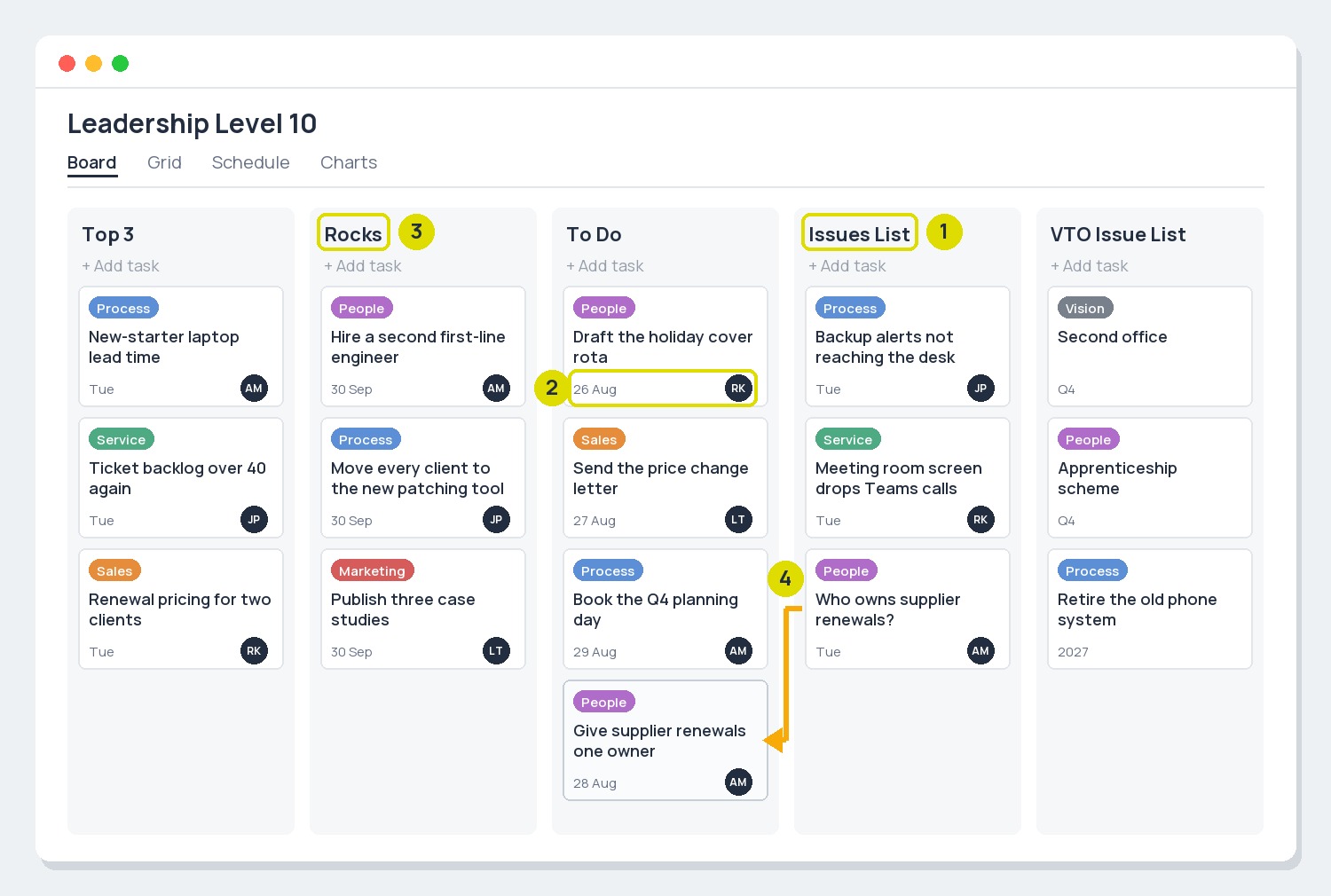
One rule keeps it to time: anything off track goes on the issues list rather than being discussed where it comes up. In Planner, the board is the issues list.
Our senior leadership team (SLT) board has six buckets, which is Planner’s name for columns: Top 3, Rocks, To Do, Issues List, VTO Issue List and Goals for the year. Every card is one issue, one rock or one to-do, with one owner and one date. Using Planner for the meeting means the agenda and the actions live in the same place, so nobody writes minutes.
Before the meeting, anyone adds issues as cards. In the meeting we open the board in Teams, pick the three most urgent issues, and work down from the top. When an issue is solved it becomes a to-do: we drag the card into To Do, put a name on it and a date within seven days. The following Tuesday, the to-do review is that bucket alone, done or not done. Issues too big for this quarter move to the VTO Issue List (VTO is the Vision/Traction Organiser, the two-page plan) and wait for the quarterly planning day. Rocks sit in their own bucket all quarter, marked on track or off track.
Each department (service desk, sales and marketing, finance, security and compliance) runs a shorter Level 10 on its own board with the same buckets, so an issue the service desk cannot solve gets copied up to the leadership board. That is the entire system. We have no separate project management software, no spreadsheet of actions, and no minutes.
What is Microsoft Planner?
Planner is the task management app that comes with most Microsoft 365 business and enterprise subscriptions. It is a kanban-style board: a plan is a board, each bucket is a column, and each task is a card, so you drag and drop tasks between buckets as work moves along. It was built for Office 365 work or school subscriptions back in 2016, and it now sits inside Microsoft Teams, in a browser at planner.cloud.microsoft, and as a mobile app on the App Store and Google Play.
The task cards carry everything the job needs: a clear task title, an owner, a start and due date, a priority, checklist items, labels, attachments, and comments that stay with the card. You can assign tasks to more than one person, mark progress (not started, in progress, complete), and attach files from OneDrive or the SharePoint site associated with the plan, so nobody has to send an email with the file attached.
Every plan belongs to a Microsoft 365 group, which is why it shows up in Teams: the group gives the plan its members, a shared mailbox and a SharePoint site for the files. Tasks assigned to you across every plan appear in one My Tasks list. You can switch a plan between Board, Grid, Schedule (a calendar) and Charts views, and export a plan to Microsoft Excel when someone wants a spreadsheet.
In 2024 Microsoft merged Planner, To Do and Project for the web into one app, which it calls the new Planner. If you still see “Tasks by Planner and To Do” in Teams, it is the same thing under its old name. The standard Planner experience, Microsoft’s name for the included version, covers all of the above; premium features (timelines, dependencies, reports) need a paid plan, covered below. If any acronym in this post is new to you, our IT support glossary explains it.
What we use Planner for beyond meetings
Planner also runs most of our other internal work:
- Software development. Our in-house reporting system is built on a board with Backlog, Ready, In progress, Code review, QA (testing), Deployment and Done buckets, plus a Blocked bucket. Developers move their own cards, so progress is visible without a status meeting.
- Website work. Our Website plan runs as Backlog, Ready, In progress, Review and Done, with labels for blog posts, service pages and search optimisation fixes. Anyone in marketing can see what is being written and what is waiting for sign-off. This post started life as a card in that plan.
- One-off projects. Moving our remote monitoring tool to a new platform is a board with nine workstream buckets, from agent deployment to documentation. Launching a new security product has its own, from supplier selection to launch.
- Department to-do lists. Each department has its own board with the same Rocks, To Do and Issues buckets.
Other jobs a board handles well, with the buckets we would start with:
| What you could run on it | Buckets to start with | What each card is |
|---|---|---|
| Recruitment | Applied, Phone call, Interview, Offer, Started | One candidate |
| New client onboarding | To do, In progress, Waiting on client, Done | One setup step: email, devices, access, training |
| New starter or leaver | Before day one, Week one, Month one, Done | One task with an owner |
| Event or exhibition | Ideas, Booked, In hand, On the day, Follow-up | One supplier, slot or job |
| Content calendar | Ideas, Drafting, Review, Scheduled, Published | One post, article or newsletter |
| Office move | Two months out, One month out, Week before, Moving day, After | One job |
| Simple sales pipeline | Lead, Contacted, Proposal sent, Won, Lost | One opportunity (a CRM does this better past a dozen live deals) |
| Complaints or incidents | New, Investigating, Fix agreed, Closed | One complaint or incident |
| Compliance and renewals | Due this month, In progress, Evidence filed, Done | One policy, certificate, insurance or contract renewal |
| Board or trustee meeting actions | Agenda, Agreed actions, In progress, Done | One action with an owner and a date |
| Facilities and maintenance | Reported, Booked, Done | One fault or job |
In each case Planner makes it easy to see who owns what and what is late.
How to use Microsoft Planner: a board in five minutes
- Open it. In Teams, add Planner from the apps list, or add a Planner tab to the channel where the team already talks. Using the Planner app on your phone, you sign in with the same work account.
- Create a plan. Name it after the team or the project, not the month. A plan creates or joins a group, so the right people get access in one step.
- Add buckets for stages, not people. To do, Doing and Done is enough to start. For a meeting board, use the agenda sections; for a pipeline, use its stages.
- Add tasks. Give each card one job, one owner and one due date. Add a checklist for the steps, a label for the category, and attach the file or share files from OneDrive or the group library rather than describing them.
- Work the board weekly. Move tasks as they progress, add progress updates in the comments, and open the Charts view when someone asks how it is going.
Three habits that keep a board in use
Review it at the same time every week.
Give every card a name and a date. Without both, it is an idea, and ideas belong in a separate bucket.
Keep buckets to stages and use labels for categories. If you need ten buckets, you probably need two boards.
What Planner costs, and what Planner Premium adds
For most UK businesses it costs nothing extra. Planner is included in Microsoft 365 Business Basic, Business Standard and Business Premium, and in the enterprise plans. The exception is Microsoft 365 Apps for business, the subscription that is the desktop Office apps only. If you are not sure which you have, your IT provider can tell you in two minutes.
The paid tiers add project features on top:
| Plan | UK price (ex VAT, paid yearly) | What you get |
|---|---|---|
| Planner (included) | £0 extra | Boards, buckets, tasks, checklists, labels, attachments, comments; Board, Grid, Schedule and Charts views; My Day and My Tasks; basic templates; Teams integration |
| Planner Plan 1 | £7.70 per user per month | Timeline (Gantt) view, task dependencies, reports, project goals, backlogs and sprints, people management, premium templates |
| Planner and Project Plan 3 | £23.10 per user per month | Everything in Plan 1 plus advanced dependencies, resource requests, task history and programme management. This is the tier that took over from Microsoft Project for the web |
AI help (drafting a plan from a goal, an agent that takes on simple tasks) sits in the premium tiers and needs a Copilot licence on top. Our advice: buy Plan 1 for the two or three people who run multi-month projects and want a timeline, and leave everyone else on the included version. Buying premium for the whole company because one manager wants a Gantt chart wastes money. Prices are Microsoft’s UK list prices in August 2026; both paid tiers come with a one-month trial.
Can Planner replace Trello?
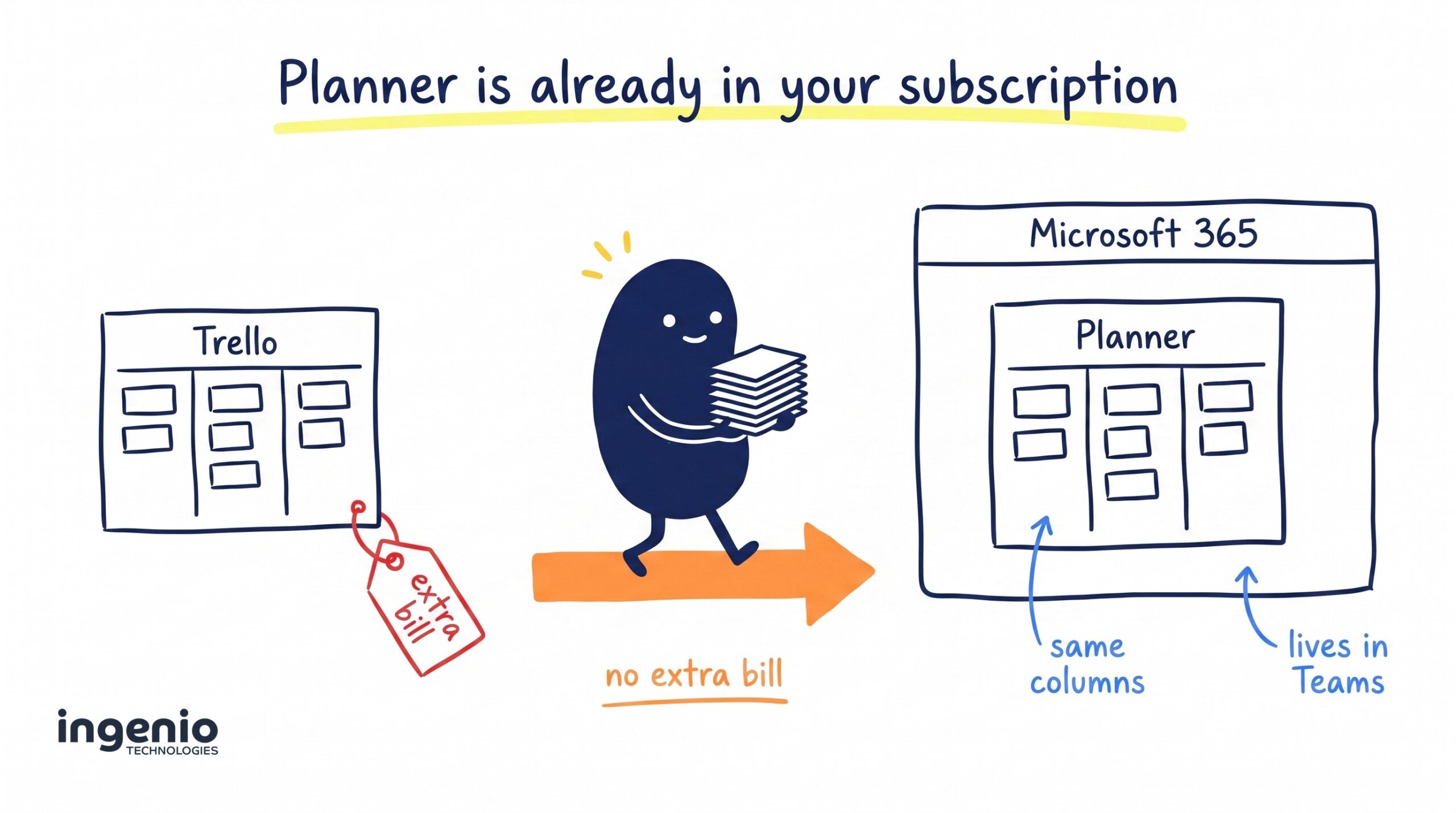
If you already pay for Microsoft 365, usually yes. The board model is the same: columns, cards, drag and drop, labels, due dates, checklists, comments. The differences are where it lives and who controls it. It lives in Teams, where your team already works. People sign in with their work account, so your multi-factor authentication and access policies apply. File sharing stays inside your own tenant, and when someone leaves, their access goes with their account. There is no separate invoice and no separate admin login, and there is no board your IT provider cannot see, the same problem we described with shadow AI: tools that hold company data outside the company’s control.
Where Trello still wins:
- Free for small or outside teams. Its free plan gives you up to 10 boards per workspace with unlimited cards, which is plenty for a club, a committee or a two-person side project.
- Built-in automation. Its rules (“when a card moves to Done, add the date”) are built in. Planner needs Power Automate for the same thing.
- People outside your business. Inviting a client or a freelancer to a board takes one email there. In Planner they need to be a guest in your group, which your IT team has to set up and approve.
- Add-ons. Power-Ups connect it to hundreds of other tools, and the boards are more customisable.
Its paid plans start at about £4 per user per month ($5, billed in US dollars, paid yearly), so a 20-person team pays around £900 a year for a board it already owns in Planner. The same sum applies to Asana, monday.com and Todoist. If the features your team uses are the basic ones, the included tool wins. Moving is an afternoon’s work for most boards: recreate the buckets, copy the cards, archive the old board, and cancel at renewal.
How we help
We provide managed IT support from Brighton, and many of our clients across Sussex already own Planner and have never opened it. We check what your subscription includes and turn the right things on (Planner, Teams, SharePoint and the group that sits behind them). We set up the first board with you, usually a meeting board or a project board, so it matches how you work. And we give your team an hour of hands-on training so the board still gets used after we leave.
If you run a weekly leadership meeting and want to see our board, ask. We will show you the live board and you are welcome to copy it. That is what managed IT support from us includes: help getting more from the tools you already pay for, as well as fixing things when they break.
Frequently asked questions
Is Microsoft Planner free?
It is included at no extra cost with most business and enterprise subscriptions, so for those businesses, yes. There is no free standalone version for people without a subscription. The premium tiers with timelines and dependencies start at £7.70 per user per month.
What is Planner used for?
Team task management: meeting agendas and actions, projects split into stages, pipelines such as recruitment or onboarding, and recurring checklists. Personal lists are better kept in Microsoft To Do.
What is replacing Microsoft Planner?
Nothing. In 2024 Microsoft merged Planner, To Do and Project for the web into a single app and kept the Planner name. The Teams app formerly called Tasks by Planner and To Do is now simply Planner.
What are the limitations of Planner?
In the included version: no timeline or dependencies, no built-in automation rules (Power Automate fills the gap), guests from outside your business are awkward to add, reporting is the Charts view only, and there is no time tracking. The paid tiers add the timeline, dependencies and reports.
What is the difference between Planner and Microsoft To Do?
To Do is for your own lists. Planner is for work shared across a team, with owners, buckets and a board everyone can see. Your Planner tasks also show up in To Do under Assigned to me, so one personal view covers both.
Can people outside my business use my board?
Yes, if they are added as a guest to the group behind the plan. That works well for a long-term contractor. For a short project with several outside people, a tool built for open collaboration may be easier.
Final thought
Planner’s advantage is that it is already there, inside the Teams window your people use all day, at no extra cost. Start with one board, a fixed weekly time, and the rule that every card has a name and a date. After a month you will know whether the team uses it.
If you would like a hand setting up your first board, or want to see how ours runs, we are happy to talk it through. 👉 Get in touch with our Brighton team.