If you only need the steps, jump straight to the step-by-step guide.
You sign in to Outlook at work and a six-digit code arrives by text. Or your phone rings and a recorded voice asks you to confirm the sign-in. If that’s how you prove it’s you, Microsoft is switching it off for Microsoft 365 work accounts.
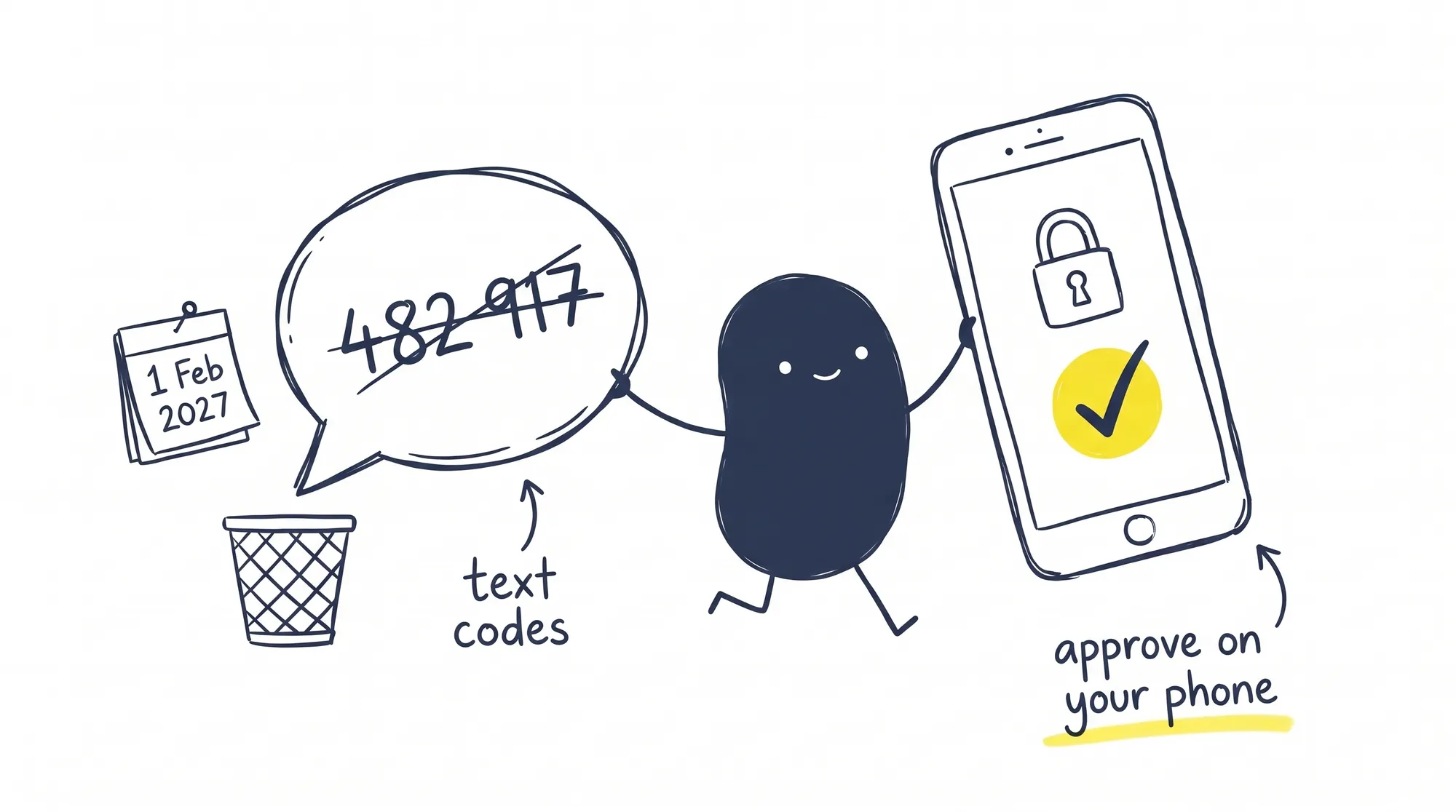
Microsoft may already have asked you to set up a passkey when you signed in, and for now you can skip that screen. From 1 February 2027 you won’t be able to. If a text or a call is your only second check, you’ll have to set up something new before you can carry on. I’d rather you did that on a quiet afternoon this month than at five to nine on a Monday with a client waiting.
It takes a few minutes, you don’t need your IT team to do it, and this guide shows each step with pictures. If you’d rather watch first, the short video below covers why it’s happening, when, and what to do.
What is Microsoft changing, and when?
When you sign in to Microsoft 365, the extra check after your password is called multi-factor authentication. You may also hear it called two-step verification or two-factor authentication. The system that runs these checks for work accounts is called Microsoft Entra ID. For years, many businesses have done that check with a code sent by text or a phone call. Microsoft is retiring the text and call codes it sends for work accounts, in stages:
| Date | What happens |
|---|---|
| 1 September 2026 | Passkeys become Microsoft’s default. If you use text or call codes, you may be asked to set up a passkey when you sign in. You can skip it. |
| 1 February 2027 | Microsoft stops sending text and call codes for most people. If a text or a call is your only second check, you must set up a passkey before you can carry on signing in. You can’t skip it. |
| 1 July 2027 | The same change reaches Global Administrator accounts and guests from other organisations. |
It covers password resets too. If you reset your own password with a code by text, that stops as well.
Why is Microsoft dropping text and call codes?
Microsoft’s reason is security. Its own FAQ calls texts and calls “among the most vulnerable authentication methods available today”. A code by text is still far better than a password on its own, but criminals have two ways to get past it:
- They move your number. In a SIM swap, a criminal persuades your mobile network to move your number onto their SIM card. Every code meant for you then goes to them.
- They catch the code. A fake login page that looks like Microsoft’s asks for your password, then your code. You type both, and they’re passed to the real page within seconds.
Microsoft wants everyone on passkeys, which give a fake page nothing to catch. Our post on what a passkey is explains how they work, and our short video on sign-in checks shows what a criminal can do with a password when there’s no second check at all.
Will I be locked out if I don’t switch?
No. Microsoft says nobody gets locked out on the day. Instead, the next time Microsoft asks you to prove it’s you after 1 February 2027, you’ll get a prompt you can’t skip, asking you to set up a passkey there and then. That’s fine if you’re at your desk with your phone. It’s less fine if you’re about to join a call, or your phone is in your coat in another room.
You can’t predict when that prompt will come. If you stay signed in on your laptop, Microsoft may not ask you to check again for weeks, and the first time might be the day you get a new laptop. Switching now means you pick the moment.
Already use the Microsoft Authenticator app?
If you approve sign-ins with a tap in the Authenticator app, nothing is being switched off for you. It’s still worth checking step 6 below to remove any old phone entries.
How to check which sign-in method you use
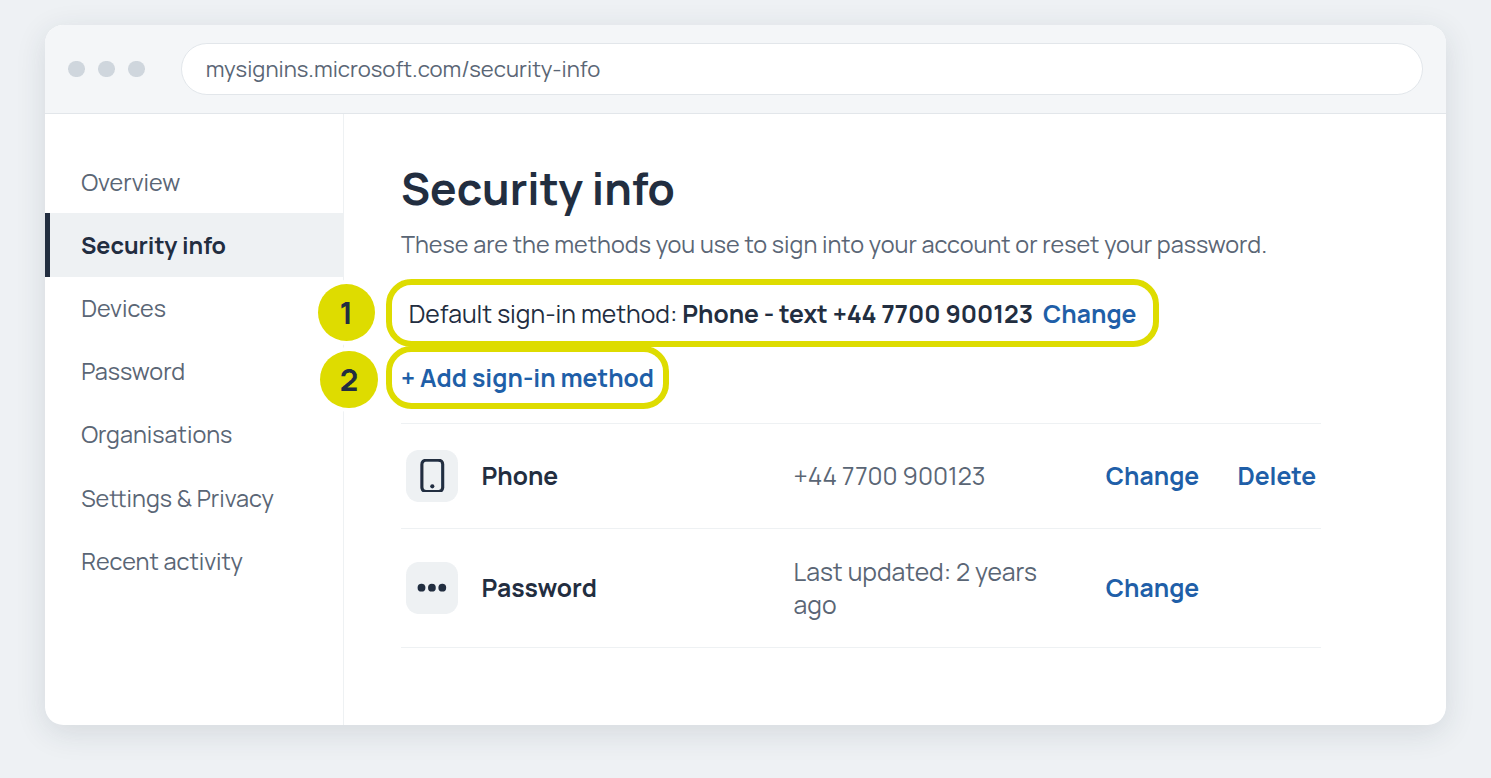
On your computer, go to mysignins.microsoft.com/security-info and sign in with your work account. The shorter address aka.ms/mfasetup takes you to the same page. This is your Security info page.
Look at Default sign-in method near the top, and the list underneath. If you see Phone and no Microsoft Authenticator or passkey, this change is about you.
How to set up Microsoft Authenticator, step by step
You’ll need your phone and your computer side by side. You don’t need any admin rights, because this is your own account.
1Install Microsoft Authenticator on your phone
Download the app from the App Store on an iPhone or Google Play on Android. Check the publisher is Microsoft Corporation, so you know it’s the real app. When you open the app, give it permission to send notifications and use the camera. You’ll need both in the next few minutes.
2Open your Security info page
On your PC or Mac, go to mysignins.microsoft.com/security-info and sign in with your work email address and password. Yes, you’ll use your text code one last time.
3Add Microsoft Authenticator
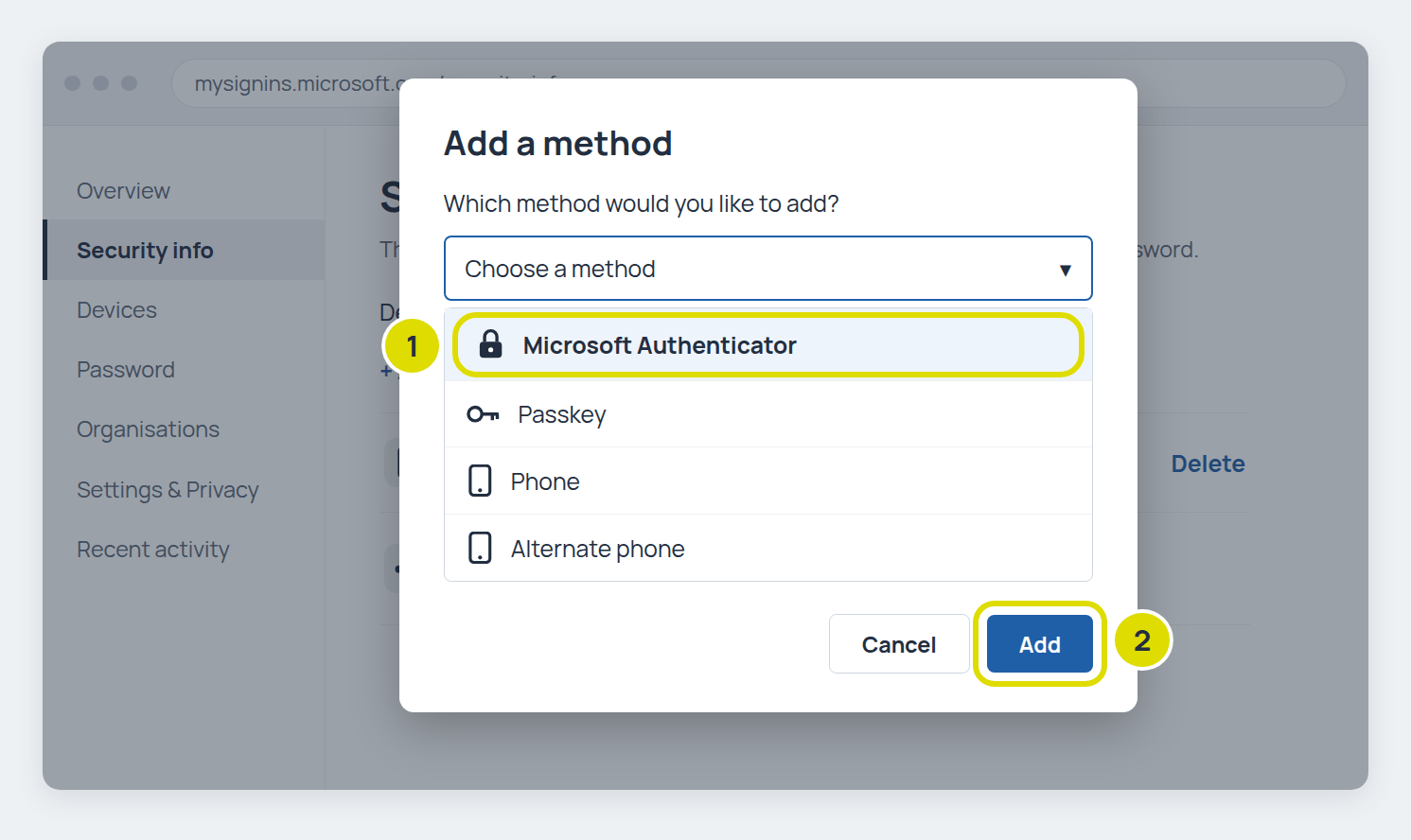
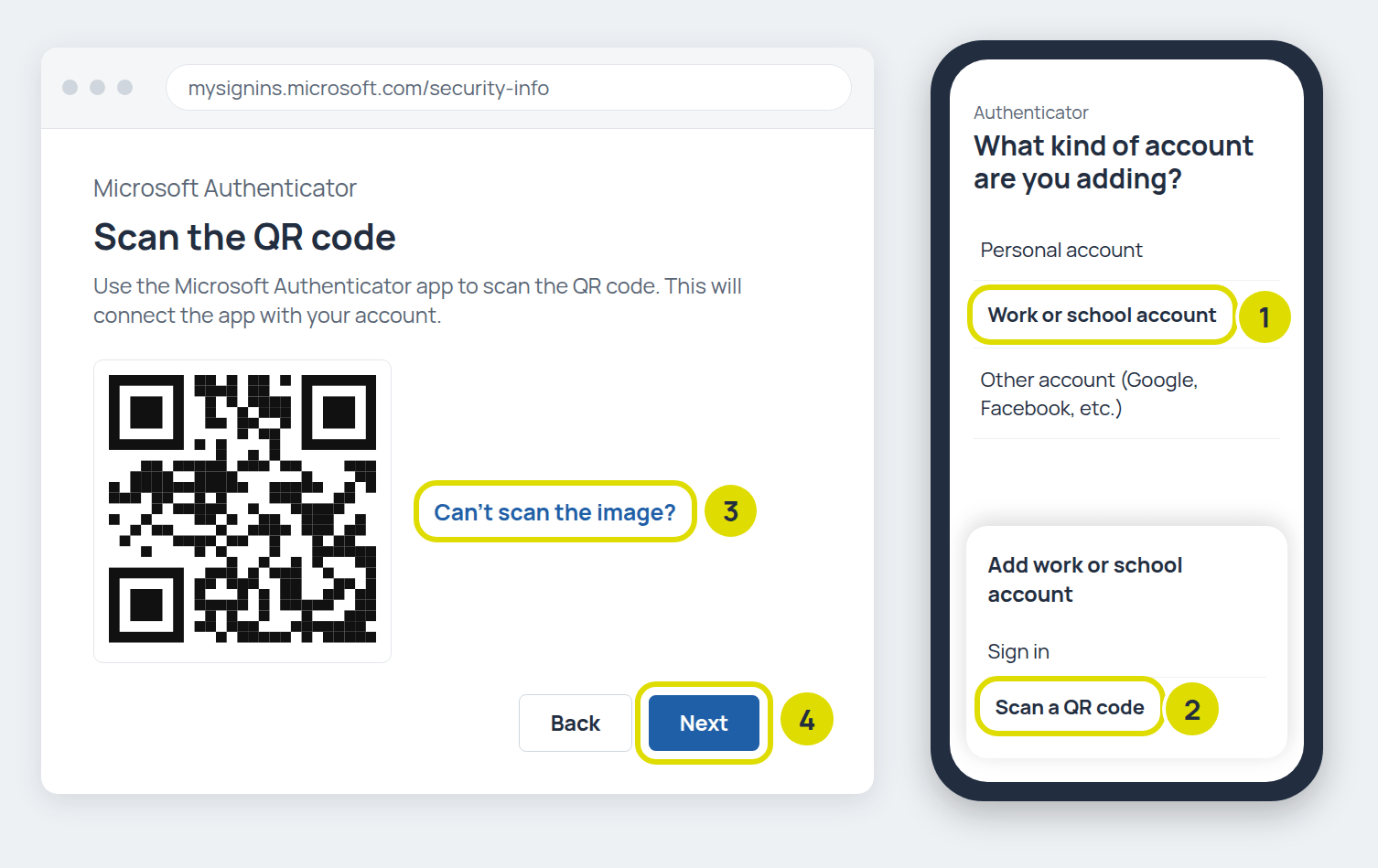
Select Add sign-in method, choose Microsoft Authenticator, then select Add. Microsoft tells you to get the app. You already have it, so carry on with Next until a QR code appears: a square pattern of black and white dots.
4Scan the QR code with your phone
In the Authenticator app, tap the + to add an account, choose Work or school account, then Scan a QR code. Point your phone at the code on your computer screen. Your work account appears in the app. Back on the computer, click Next.
If the camera won’t read it, select Can’t scan the image? on the computer and tap Enter code manually on your phone.
5Approve the test
Microsoft sends a test notification to your phone. Approve it. If your computer shows a number, type that number into the app, then click Next on the computer. You’re set up.
6Make it your default and delete the phone
Back on the Security info page, check Default sign-in method now names the Authenticator app. If it doesn’t, select Change, pick the app notification option and select Confirm.
Then select Delete next to Phone and confirm. Do the same for any Alternate phone or Office phone entries. While your number is listed, a criminal who has your password and has moved your number to their own phone could still get a sign-in code by text. Microsoft points out you can’t undo a deletion (you’d have to add the number again), so only do this once the app has worked.

From now on, when you sign in, your phone asks you to approve it. You won’t be asked every time you open Outlook; how often depends on your organisation’s settings.
What if Microsoft then asks me to set up a passkey?
Say yes. A passkey is the method Microsoft wants everyone using, as part of its move to passwordless sign-in. It’s kept on a device you own, either in the app you’ve just set up or on your laptop, and you confirm it’s you with your face, fingerprint or PIN. There’s no code to type, so a fake sign-in page gets nothing. Follow the steps on the screen. Our guide to passkeys covers the different kinds.
What should business owners do?
Your staff can each make this change themselves, but a few things need someone to own them:
- Find out who still uses texts. Microsoft provides a tool that lists every account still set up for text or call codes. Your IT team can run it, and that list becomes your to-do list.
- Send your team this guide. Staff who hear about it from you first won’t be surprised by the screen in February.
- Plan for the awkward cases. Someone without a work phone, a mailbox several people sign in to, and your most powerful admin accounts all need a decision. A small security key that plugs into a laptop suits people who can’t use a phone.
- Decide whether you truly need texts. A few regulated businesses must keep them. From 30 October 2026, they can pay a telephone provider through the Microsoft Security Store. Passkeys cost nothing extra.
How we help
For the businesses we support, we’ve listed which accounts still rely on texts or calls, and we’ll check that list again over the coming months. Your team can make the switch themselves using this guide. If anyone gets stuck, they can call our service desk, where a real engineer reviews every ticket within 15 minutes, Monday to Friday, 08:00 to 18:00.
If you’re a business in Brighton, Sussex or the South East and nobody looks after your Microsoft 365 security, we can run Microsoft’s check, move your team onto the Authenticator app and passkeys, and sort out shared accounts and staff without smartphones. Our Microsoft 365 identity protection service then watches for logins that shouldn’t happen. If you think someone has already got into an account, our guide to telling if your email has been hacked covers the checks.
Frequently asked questions
Is Microsoft getting rid of text message codes for Microsoft 365?
Yes, for work accounts. From 1 February 2027, Microsoft stops sending text and phone call codes for most people. Global Administrator accounts and guests from other organisations follow on 1 July 2027.
Do I need to do anything if I already use Microsoft Authenticator?
No, the app keeps working. It’s worth deleting any old phone entries from your Security info page, and saying yes if Microsoft asks you to set up a passkey.
How do I get a QR code for Microsoft Authenticator?
Go to mysignins.microsoft.com/security-info on your computer, select Add sign-in method, choose Microsoft Authenticator and select Next until the QR code appears. Each code is made for your account, so scan the one on your own screen.
How do I set up Microsoft Authenticator on a new phone?
Before you wipe or hand back the old phone, install the app on the new one and add it from your Security info page as above. Test it, then delete the old phone’s entry. If the old phone is lost or broken and you can’t sign in, call your IT team, who can clear your sign-in methods so you can start again.
Do I have to use my personal phone?
Talk to your employer. Some people prefer not to put work apps on a personal phone. A small security key that plugs into a laptop is one alternative, and your IT team can set it up.
Can I still reset my password with a text code?
Not after the change. Microsoft is retiring text and call codes for password resets too, so set up the app before you next need to reset your password.
Final thought
Microsoft has given everyone until February. A few minutes this month means that screen never catches you at a bad moment, and sign-in codes stop going to your phone number.
👉 Talk to us about moving your team off text codes. We’re happy to talk it through.