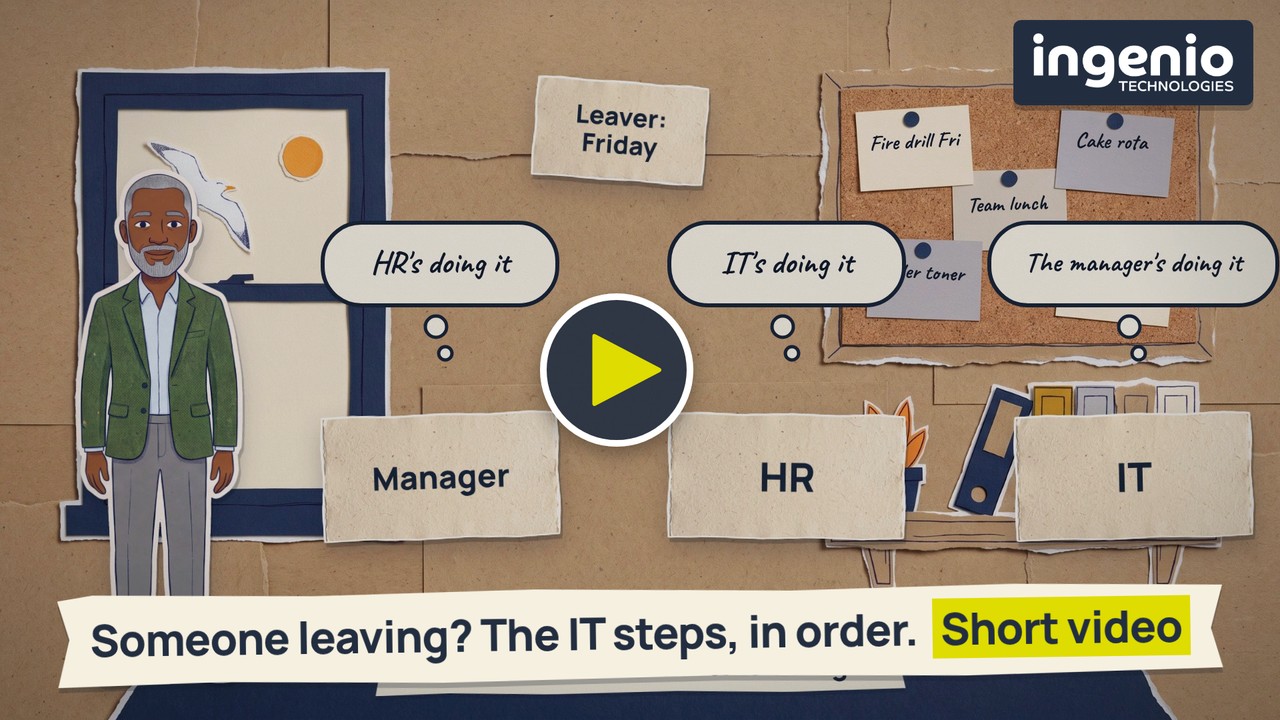
When someone leaves your business, IT offboarding means locking them out of your email, files and apps, and getting your equipment back. This video, just over two minutes long, takes you through it in order: agree who does what before anyone leaves, send IT one request at least two working days ahead, and lock their Microsoft account at an agreed time on their last day. In the first week, turn their mailbox into a shared mailbox, an inbox a colleague can open, and only then cancel their licence, the Microsoft subscription you pay for that person.
Why does a leaver’s account still matter?
An account left open is a way in, for a criminal with a stolen password or for the person who left. If nobody blocks sign-in, anyone with the password gets into an account nobody is watching, along with all the company information in that inbox. Their mailbox also keeps receiving email after they’ve gone, including phishing, the fake emails criminals send to trick people. Our guide to phishing, spear phishing and whaling explains the different kinds.
The NCSC, the UK’s National Cyber Security Centre, asks businesses to have a “joiners, movers and leavers” policy, so access can be taken away when it’s no longer needed. Cyber Essentials says the same in its requirements: remove or disable user accounts when they’re no longer required, for example when someone leaves.
Why do leaver steps get missed?
The laptop and the leaver’s email are on everyone’s list. Three things usually aren’t: the team email lists they’re still on, the other logins they’ve picked up over the years, and the old laptop in a drawer you might still be paying for. The longer someone has worked for you, the more logins they collect, and IT can’t see most of them.
None of this happens because anyone is careless. The job is split between the manager, HR and IT, and each thinks another is doing it. By IT, we mean your IT company, or whoever looks after IT in your business.
What to do when someone leaves, step by step
- Before anyone leaves, agree who does what. The business decides when the leaver’s access stops, who takes over their email and files, and which other logins they hold. IT makes the changes and confirms they’re done.
- Send IT one request, at least two working days ahead. Give their last day, the exact time their access stops (for example 5.30pm) and the person responsible. Send it as one clear request, not several emails. Ingenio clients use the leaver form on our client portal, Ingenio Lightbulb, which opens a support ticket. If you’re dismissing someone, ring IT before the meeting, and cut their access the moment it starts.
- Before their last day, write down every other login they have. That means anything outside Microsoft 365, such as online banking, accounts and payroll, supplier websites, social media, and your website and web address. Include any account that sends codes or renewal notices to their email or mobile. List their devices too, and if they work from home, arrange how the laptop comes back before their final week.
- On their last day, at the agreed time, block their Microsoft account so they can’t sign in any more. Cancelling their licence doesn’t do this. The two settings live in different places, and we’ve seen accounts with the licence removed and sign-in still switched on. Once sign-in is blocked, their password and the sign-in app on their own phone stop working too. IT should also remove their access to the office server, shared drives and anything they use to connect from home.
- On the same day, collect the kit and hand over the logins. Collect their laptop, phone, chargers, keys, door fob and company card, and ask them to remove work email and apps from their own phone. Hand each login on your list to a named colleague, or close it. Then change the Wi-Fi password, the alarm code and any team passwords they knew. If those passwords are kept in a spreadsheet, the leaver may still have a copy; our video on passwords in a spreadsheet shows why a password manager is safer.
- In the first week, turn their mailbox into a shared mailbox, then cancel the licence. A shared mailbox is an inbox a colleague can open, so customers can keep emailing the old address, and an automatic reply can point them to the new contact. Pass their OneDrive files, the work files saved in their own Microsoft storage, to a colleague in the same way. Only then cancel the licence: a shared mailbox under 50 gigabytes doesn’t need a paid licence, and your IT company can check the size. If you cancel the licence before the mailbox is shared, Microsoft deletes their email permanently after 30 days.
- In the first week, check forwarding, team lists and devices. Try not to forward their email, and check their mailbox isn’t copying messages to a personal address, because criminals who get into a mailbox use that same setting to copy everything to an address they control. Take them off team email lists, shared mailboxes and Teams groups. Wipe each laptop and phone before you pass it on or get rid of it, and tell IT so it comes off your records.
- Within a month, check your next IT bill has gone down by one licence. Put a date in the diary to review the shared mailbox and files, and record who signed the offboarding off.
Our free two-page leaver checklist (PDF) sets all this out. The manager fills in page one when someone hands in their notice and sends it to IT. Page two splits the tasks between the manager, HR and IT, so everyone can see where their part starts and ends. Keep passwords off the form. Our full guide, the IT offboarding checklist most businesses skip, explains each step in more detail. If you’re hiring a replacement, our new starter IT setup form covers the IT side of joining.
Video transcript
Read the full transcript
Narrator: When someone leaves, you need to lock them out of your email, files and apps, and get your equipment back. The laptop and their email are on everyone’s list. Three things usually aren’t: every team email list they’re on, the other logins they’ve picked up over the years, and the old laptop in a drawer you might still be paying for.
Narrator: An account left open is a way in, for a criminal with a stolen password, or for the person who left. It gets missed because the job is split between the manager, HR and IT, and each thinks another is doing it.
Narrator: So agree who does what before anyone leaves. Then send IT one request, at least two working days ahead, with the day, the exact time access stops, and who’s responsible. Ingenio clients can use the leaver form on our client portal. If you’re dismissing someone, ring IT before the meeting, and cut their access the moment it starts.
Narrator: Before their last day, write down every other login they have, like online banking, payroll, supplier websites, social media, and your website and web address.
Narrator: On their last day, at the agreed time, block their Microsoft account so they can’t sign in any more. Cancelling their licence, the Microsoft subscription you pay for them, doesn’t lock the account. We’ve seen people still able to sign in after it’s gone.
Narrator: Collect their laptop, phone, chargers, keys, door fob and company card. On the same day, hand each of those other logins to a named colleague, or close it. Then change the Wi-Fi password, the alarm code and any team passwords they knew.
Narrator: In the first week, turn their mailbox into a shared mailbox, an inbox a colleague can open. Customers can keep emailing the old address. Only then cancel the licence: a shared mailbox under 50 gigabytes doesn’t need a paid licence. If you cancel it earlier, Microsoft deletes their email permanently after 30 days.
Narrator: Try not to forward their email, and check their mailbox isn’t copying messages to a personal address, because criminals use that same setting to read your mail. Take them off team email lists and Teams groups, and wipe each laptop and phone before you pass it on or get rid of it.
Narrator: Within a month, check your next IT bill has gone down by one licence.
Narrator: Our free two-page checklist sets all this out: page one is the request you send IT, and page two shows who does what. Download it from our website. If you’ve got questions, ask the Ingenio team.
Frequently asked questions
What is IT offboarding?
It’s the IT side of someone leaving your business: locking them out of your email, files and apps, and getting your equipment back. It covers what to do before, on and after their last day, and who does each step.
Does cancelling a leaver’s Microsoft 365 licence stop them signing in?
No. The licence is the Microsoft subscription you pay for that person, and cancelling it doesn’t lock the account. We’ve seen accounts with the licence removed and sign-in still switched on. Block sign-in at the agreed time on their last day, so they can’t sign in any more.
What happens to a leaver’s email if you cancel their licence?
If it’s still a normal mailbox, Microsoft keeps their email, contacts and calendar for 30 days, then deletes them permanently. Turn it into a shared mailbox first. A shared mailbox under 50 gigabytes doesn’t need a paid licence, so you can cancel the licence after that.
Should we forward a leaver’s email to a colleague?
We’d avoid it where you can. A shared mailbox with an automatic reply is safer and easier to manage. Never forward a leaver’s email to a personal address, and check their mailbox for forwarding rules they set up while they worked for you.
Is offboarding part of Cyber Essentials?
Yes. Cyber Essentials requires you to remove or disable user accounts when they’re no longer needed, for example when someone leaves.
How we help
At Ingenio, leaver requests come in through the leaver form in Ingenio Lightbulb, and an engineer works through the checklist: blocking sign-in, turning the mailbox into a shared mailbox, setting up access and automatic replies, cancelling licences and dealing with devices. Our support engineers are told whenever someone sets up a new email forward on a client mailbox, so we can check it’s genuine. We use Keeper as our business password manager, so a leaver’s logins can be handed to a colleague in one go. Our Microsoft 365 identity protection watches for suspicious sign-ins and hidden inbox rules that copy or move email. If a device we manage shows no activity for 60 days, we’re told and follow it up with you. We’re based in Brighton and support businesses across Sussex and the South East.
Final thought
Our engineers’ main advice on leavers is to start early. Agree who does what before anyone leaves, send IT one request with a time on it, and use the checklist so every step has a name next to it.
👉 Talk to us about your leaver process. We’re happy to talk it through.